macOS: Adding iCloud Drive to the Dock
How to add iCloud Drive to the dock in macOS. You can access iCloud Drive from Finder, but for a quick way to see you cloud files you can add a shortcut to the Dock. As the icon for iCloud Drive is inaccessible from the Applications folder, we will show you 2 ways to add this onto the Dock.


To add iCloud Drive to the Dock (as an application) In MacOS
- Click on the Finder icon in the Dock.
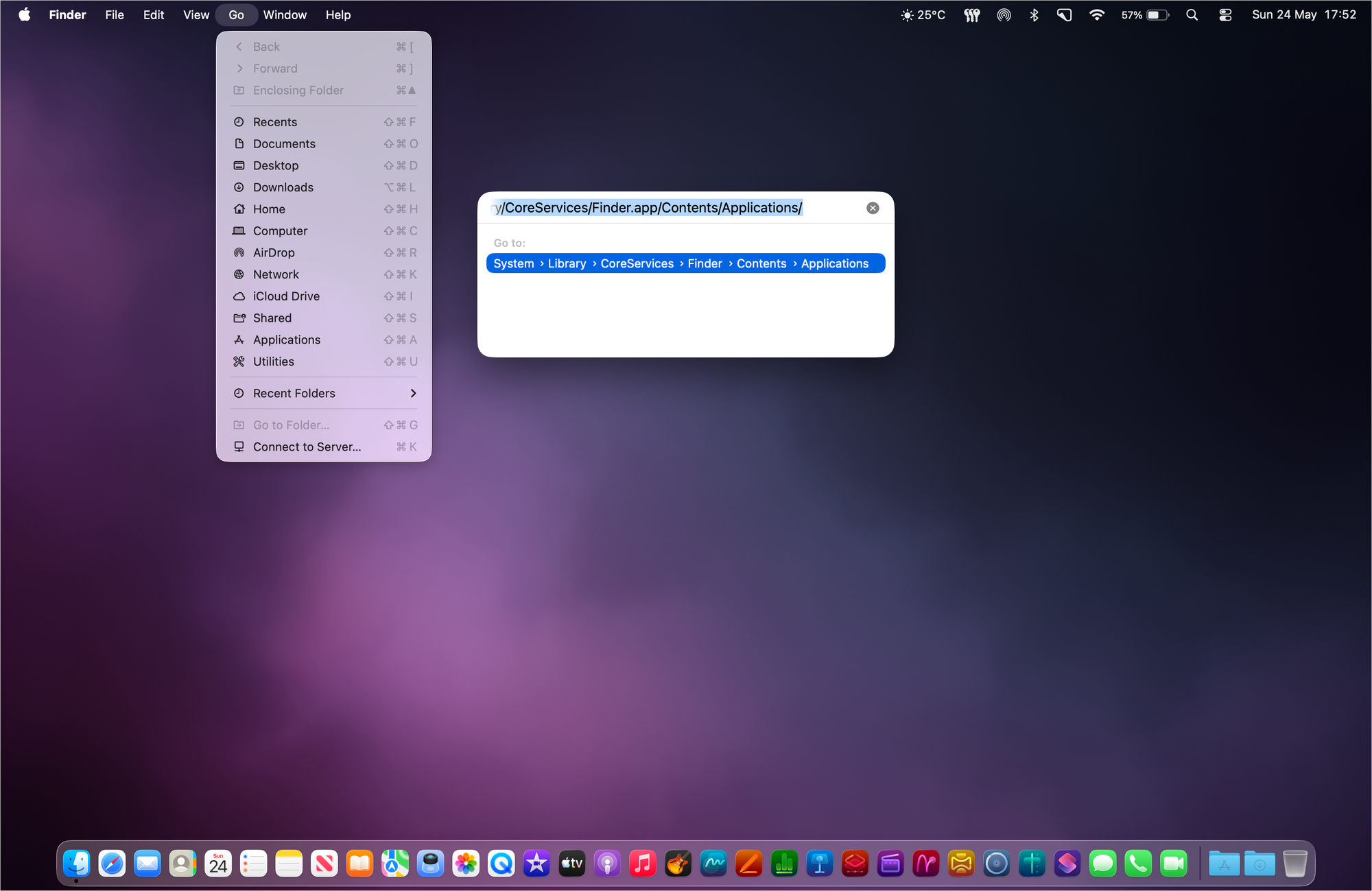
- On the Finder menu bar (at the top) click on Go > Go to Folder…
Paste…
/System/Library/CoreServices/Finder.app/Contents/Applications/
…into the Go to Folder field.
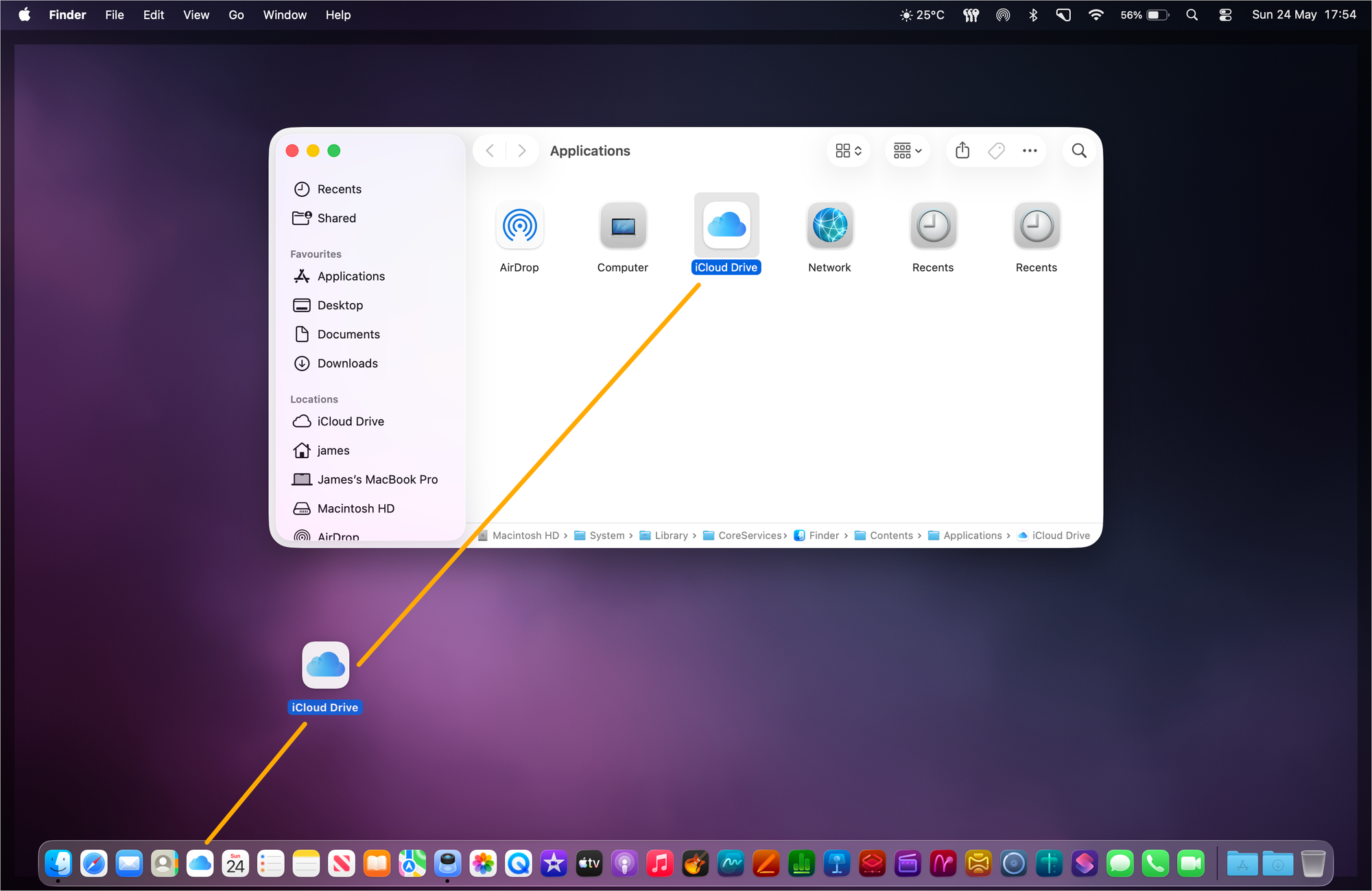
Drag the iCloud Drive app icon to the Dock. As this is an application it will need to be placed on the left-hand side of the Dock divider line (which separates applications and folders).
To add iCloud Drive to the Dock (as a folder) In MacOS
::WARNING:: Be careful not to drag the iCloud Drive folder on to the desktop as this will make a copy of the folder and its contents there.
- Click on the Finder icon in the Dock.
- On the Finder menu bar (at the top) click on View > Show Path Bar (if not already shown).
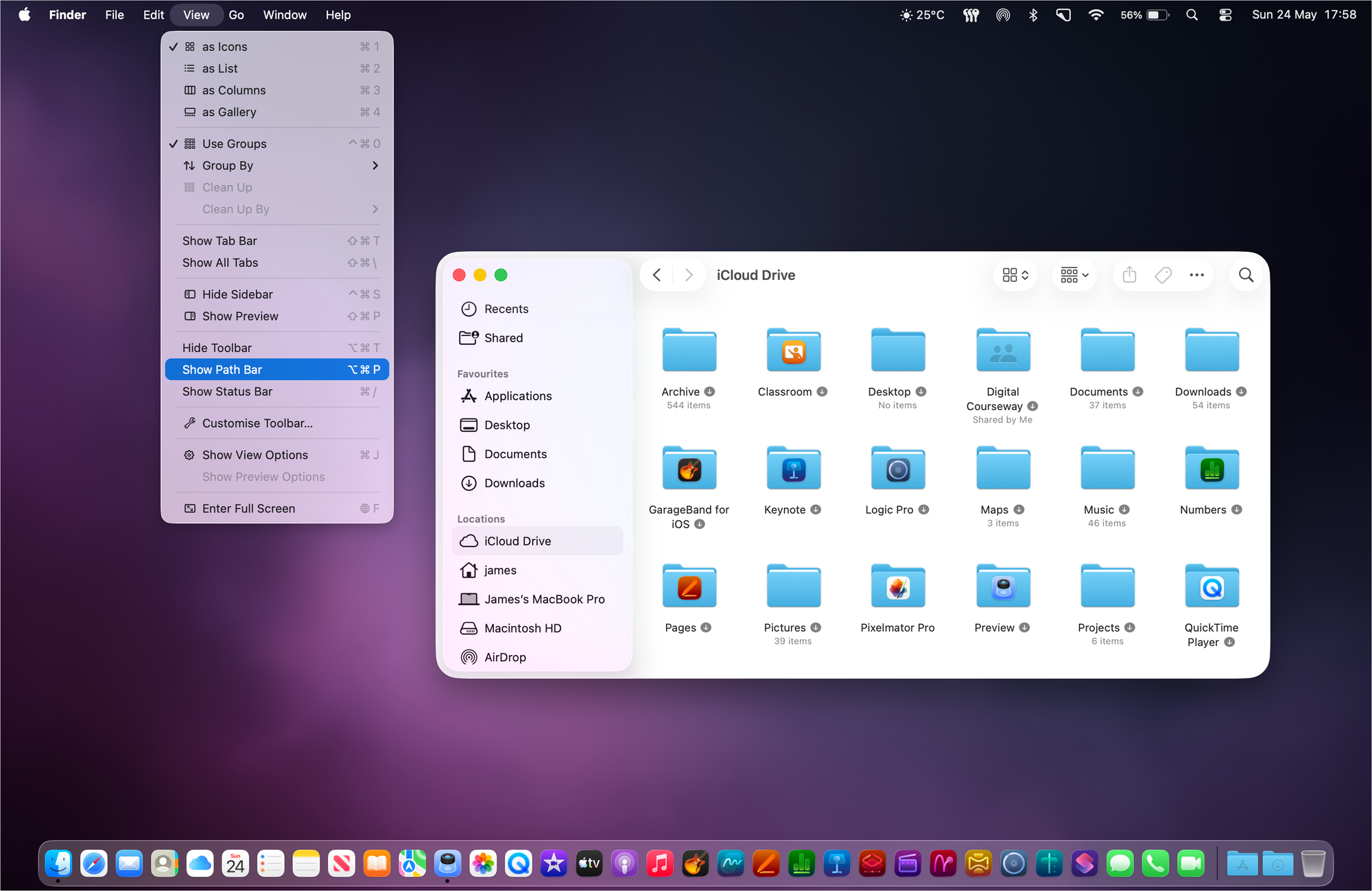
- On the Finder window click on iCloud Drive from the left-hand side menu.
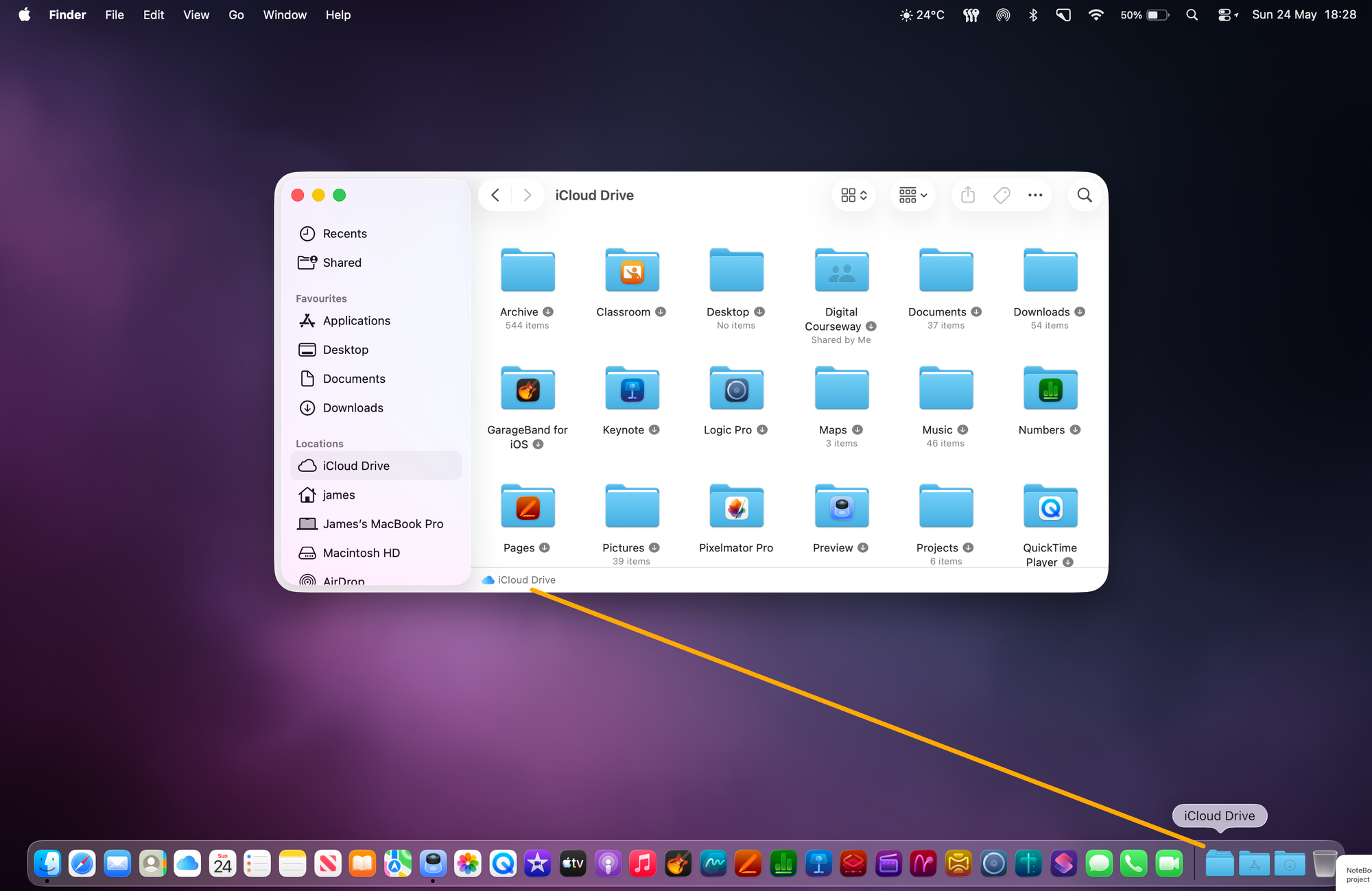
- In the path bar at the bottom of the Finder window it says iCloud Drive – drag this into the Dock. As this is a folder it will need to be placed on the right-hand side of the Dock divider line.
Originally posted 11 April, 2025. Updated 24 May, 2026.
This works in all versions of macOS and Mac OS X.