
Terminal Hacks - Monitor System Activity
This hack will show you how to display system information (process statistics and resource usage) as well as a real time list of processes and threads that are currently running. An alternative to having to open the Activity Monitor application on your Mac.

James Pearson
Sheffield, UK

Show System Activity Monitor
Open Terminal: Finder > Applications > Utilities
In Terminal, type or paste the following…
top(return)
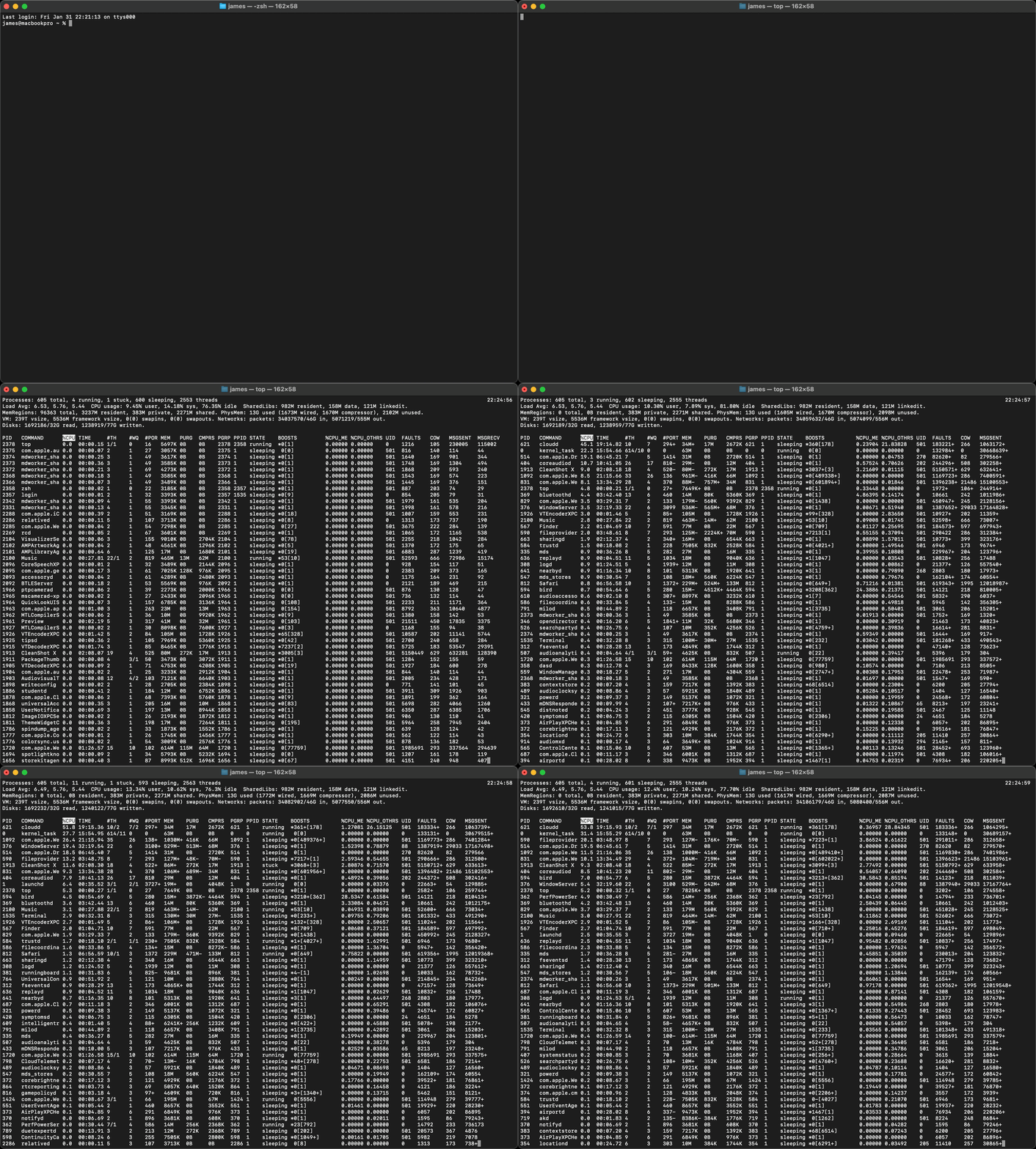
By default %CPU is the default sort column (highlighted in white).
To exit the activity monitor, type or paste the following…
q(return)
Show System Activity Monitor and Define a Column to Sort By
Open Terminal: Finder > Applications > Utilities
In Terminal, type or paste one of the following…
top -o cpuTo sort by %CPU [central processing unit usage]
top -o memTo sort by %MEM [memory usage]
top -o pidTo sort by PID [a task's unique process ID]
top -o timeTo sort by TIME [the amount of time in hundredths of a second a process has run for since last reboot]
top -o commandTo sort by COMMAND [the command that initiated the process]
(return)
::TIP:: you can sort by any column displayed in the activity monitor simply type the columns name after top -o.
Terminating a Process
Make a note of the PID ID number shown in the activity monitor.
Open Terminal: Finder > Applications > Utilities
In Terminal, type or paste one of the following…
kill 0000[replace 0000 with the PID number of the process you wish to terminate]
(return)
Originally posted 31 January, 2025. Updated 16, August 2026.




HEY: Managing Notifications
James Pearson
Sheffield, UK


iPadOS: Configuring a Mouse and Trackpad
James Pearson
Sheffield, UK